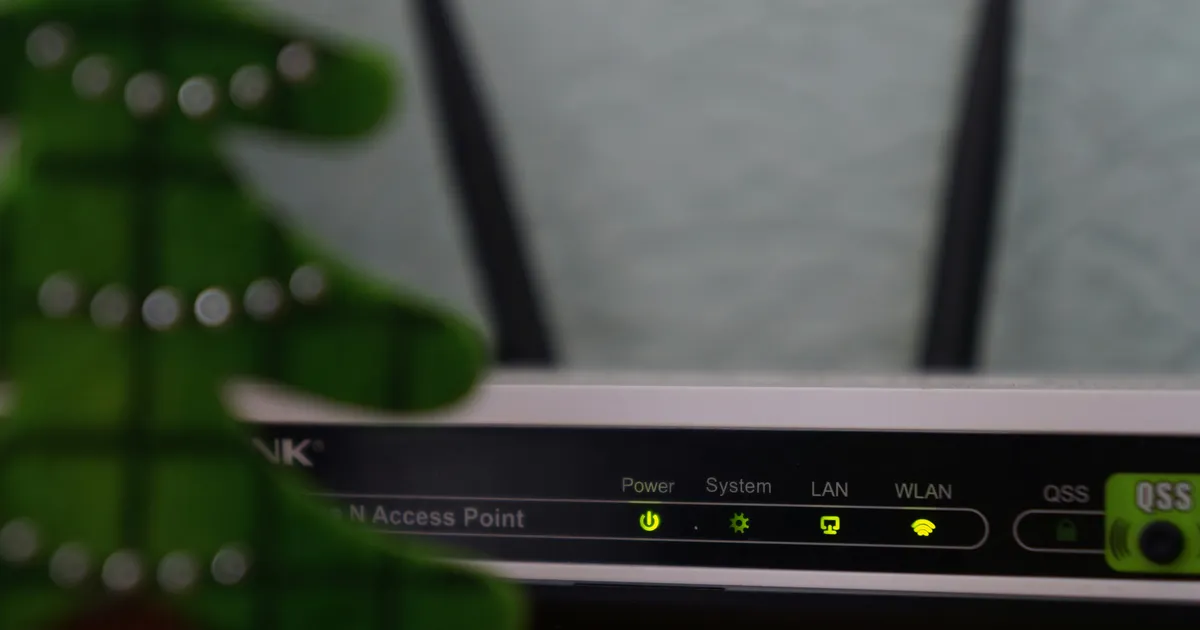

Learning how to update router firmware safely at home is a critical skill for maintaining a secure and high-performance home network in the modern digital landscape. As we progress into 2026, the complexity of cyber threats has evolved, making it essential to keep your networking hardware equipped with the latest security patches and performance enhancements. Firmware acts as the operating system for your router, controlling everything from data routing to encryption protocols. Neglecting these updates can leave your personal information vulnerable to sophisticated hacking attempts and result in sluggish internet speeds. By following a systematic approach, any homeowner can ensure their device remains resilient against emerging vulnerabilities while unlocking new features that improve local connectivity. This guide provides a comprehensive roadmap for navigating the update process with confidence and precision for your household.
Why Regular Firmware Updates Matter
Router manufacturers frequently release firmware updates to address newly discovered security vulnerabilities that could compromise your entire network. In 2026, hackers often target older firmware versions that lack modern encryption standards, making an unpatched router an easy entry point for unauthorized access. These updates often include critical patches for zero-day exploits that were not known when the hardware was first manufactured. By prioritizing these installations, you effectively build a digital fortress around your home, protecting sensitive data such as banking information and smart home device communications from prying eyes. Staying current ensures your hardware can withstand the latest automated scanning tools used by malicious actors today.
Beyond security, firmware updates are instrumental in optimizing the overall performance and stability of your wireless connection. Manufacturers utilize these updates to refine data processing algorithms, which can lead to lower latency and higher throughput for bandwidth-heavy activities like 8K streaming or cloud gaming. Often, a simple software refresh can resolve persistent connectivity drops or signal interference issues that were previously attributed to hardware failure. Keeping your router current ensures that it can efficiently manage the increasing number of IoT devices connected to your network, maintaining a seamless experience for all users. These improvements often extend the functional lifespan of your networking equipment significantly.
Preparing Your Network for the Update
Before you begin the process of how to update router firmware safely at home, it is imperative to gather specific details about your hardware to avoid compatibility issues. Locate the sticker on the bottom or back of your router to identify the exact model number and hardware version, as firmware is often version-specific. Once you have this information, log into your router administrative dashboard via a web browser using the default gateway IP address, typically 192.168.1.1 or 192.168.0.1. Take a moment to record your current settings, including SSID names, passwords, and any custom port forwarding rules you have previously configured for specific applications or gaming consoles.
Creating a configuration backup is a vital safety step that many users overlook during the preparation phase. Most modern routers offer a Backup Settings or Export Configuration option within the system tools menu that allows you to save a small file to your computer. This file serves as a recovery point should the update process encounter an error or if the new firmware resets your device to factory defaults. Additionally, verify that your internet connection is stable before starting the download. Consulting authoritative resources like CISA or manufacturer support pages can provide further insights into the specific security improvements included in the latest release for your device.
Executing the Manual Update Process
To perform a manual update, visit the official support website of your router manufacturer and search for your specific model and hardware revision. Download the latest firmware file, which usually comes in a .bin or .img format, and save it to an easily accessible folder on your desktop. It is crucial to ensure that you are downloading the file directly from the manufacturer to avoid malicious software masquerading as official updates. Once the download is complete, navigate to the Firmware Update or System Upgrade section within your router web interface and select the option to upload a local file from your machine.
After selecting the file, click the upgrade button and allow the router to process the data without any interference. During this time, the router will typically display a progress bar and may reboot several times; it is essential that you do not refresh the browser or disconnect the power during this critical window. A successful manual update provides the highest level of control over the installation process, ensuring that the software is applied correctly. For those seeking technical specifications on network protocols, sites like IEEE offer deep dives into the standards that these firmware updates help maintain and improve for global connectivity.
Troubleshooting Common Update Failures
If the update process stalls or returns an error message, the first step is to verify that the firmware file is not corrupted and matches your hardware version exactly. Sometimes, browser extensions or aggressive firewall settings on your computer can interfere with the file transfer to the router. Try using a different web browser or a wired Ethernet connection instead of Wi-Fi to ensure a stable data path during the upload. If the router becomes unresponsive, a power cycle or a soft reset may be necessary to restore access to the administrative dashboard, allowing you to attempt the installation again with a fresh download of the firmware file from the source.
Automating Router Maintenance in 2026
As we move through 2026, many leading networking brands have integrated automated update features into their ecosystems to simplify the user experience. By enabling Auto-Update in your router settings, the device will periodically check for new releases and install them during low-usage hours, such as the middle of the night. This hands-off approach ensures that you are always protected by the latest security patches without needing to manually monitor manufacturer websites. This is particularly beneficial for users who may not have the technical inclination to perform manual upgrades but still require a high level of network security for their connected smart homes.
Many modern routers also come with dedicated mobile applications that provide push notifications when a new firmware version becomes available. These apps often allow you to initiate the update with a single tap from your smartphone, providing a convenient way to manage your network health on the go. While automation is convenient, it is still wise to check the router status occasionally to ensure that the updates are being applied successfully without errors. For comprehensive guides on home networking best practices, the Wi-Fi Alliance provides extensive documentation on maintaining modern wireless standards and device interoperability across different manufacturers.
Essential Safety Precautions to Follow
The most critical rule when learning how to update router firmware safely at home is to never interrupt the power supply while the update is in progress. A sudden loss of power during the flashing process can brick your router, rendering the hardware completely unusable and often requiring a difficult recovery process or professional repair. To mitigate this risk, consider plugging your router into an Uninterruptible Power Supply (UPS) if you live in an area prone to power fluctuations. This ensures that even a brief outage will not disrupt the delicate process of overwriting the router internal operating system with the new firmware code.
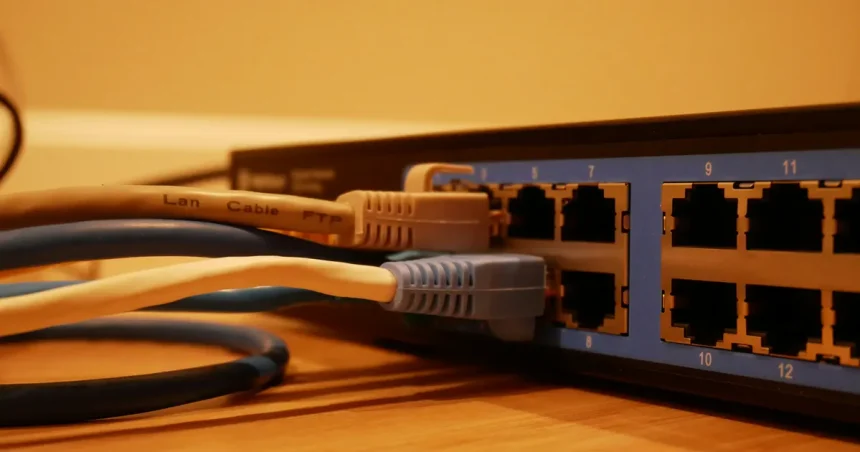
Using a wired Ethernet connection between your computer and the router is significantly safer than performing an update over Wi-Fi. Wireless signals can be subject to interference or momentary drops, which might lead to a partial or corrupted file transfer during the update. By using a physical cable, you create a dedicated and stable communication channel that minimizes the chances of data loss during the upload phase. Additionally, ensure that no other users are performing high-bandwidth tasks on the network during the update, as this can sometimes cause the router processor to prioritize traffic over the system upgrade task, leading to potential instability.
Verifying Success and Restoring Connectivity
Once the update is complete and the router has finished rebooting, log back into the administrative interface to verify the current firmware version number. It should now reflect the version you just installed, confirming that the process was successful and the new features are active. Take a few minutes to browse the settings menu to see if any new security options or performance toggles have been added. In some cases, a firmware update might reset certain custom configurations to their default values, so it is important to cross-reference your current setup with the notes or backup file you created before starting the process.
If you find that your previous settings were wiped, use the Restore Settings feature to upload the configuration file you saved earlier. This will quickly bring your network back to its optimal state with all your custom passwords and device rules intact. After restoration, test various devices around your home to ensure they can connect to the internet and communicate with each other without issues. If you notice any unusual behavior, such as intermittent drops, performing a factory reset and manually re-entering your settings can sometimes clear out residual conflicts from the previous firmware version, ensuring a clean slate for the updated software.
Key Takeaways
- Always back up your current router configuration before starting any firmware update.
- Use a wired Ethernet connection to ensure the most stable file transfer process.
- Verify your specific hardware version to download the correct firmware file.
- Never turn off or unplug the router while the update progress bar is active.
- Enable auto-updates if your router supports them for consistent protection in 2026.
- Check the manufacturer official support site for the most legitimate software downloads.
Frequently Asked Questions
How long does a typical router firmware update take?
Most updates take between three to five minutes to complete, including the time required for the device to reboot and re-establish connections.
Will updating firmware delete my Wi-Fi password?
Usually, your settings and passwords are preserved during an update, but a configuration backup is recommended in case a factory reset occurs.
Can I update my router using a mobile phone?
Yes, many modern manufacturers provide dedicated mobile apps that allow you to manage and update your router firmware directly from your smartphone.
What should I do if my router stops working after an update?
If the device becomes unresponsive, you should attempt a factory reset using the physical reset button located on the back of the router hardware.
How often should I check for new firmware updates?
It is considered best practice to check for new firmware updates at least once every three months to ensure maximum security and performance.
Conclusion
Understanding how to update router firmware safely at home is an essential component of modern digital hygiene. By following the structured steps outlined in this guide, you can significantly enhance your network security posture and performance capabilities for 2026 and beyond. Regular maintenance ensures that your hardware remains compatible with the latest web standards and resilient against evolving cyber threats. While the process may seem technical, the long-term benefits of a stable and secure internet connection far outweigh the few minutes required to perform the update. Stay proactive and keep your devices current for a better experience.