
Welcome to the complete beginner guide to home broadband setup, your essential resource for getting online quickly and efficiently. Setting up your home internet connection might seem daunting at first, especially if you’re new to the world of modems, routers, and Wi-Fi signals. However, with this comprehensive, step-by-step walkthrough, you’ll discover that connecting to the digital world is far simpler than you imagine. We’ll demystify the process, from understanding your internet service provider’s equipment to securing your wireless network, ensuring you have a reliable and fast connection for all your online activities. Get ready to transform your living space into a connected hub with ease.
Understanding Your Broadband Service
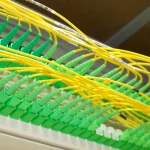
Before you even unbox your equipment, it’s crucial to understand the type of broadband service you’ve subscribed to. Common types include Fiber Optic, Cable, DSL, and 5G Home Internet. Fiber offers the fastest speeds by transmitting data as light signals, while cable broadband uses existing television cable lines. DSL (Digital Subscriber Line) utilizes traditional phone lines and is generally slower but widely available. 5G Home Internet, a newer option, provides wireless broadband using cellular networks. Knowing your service type helps you identify the correct input ports and ensures compatibility with the provided hardware, which usually consists of a modem, a router, or a combined modem-router unit.
Your Internet Service Provider (ISP) will typically send you a “self-installation kit” containing everything you need. This kit usually includes the modem (or gateway), a power adapter, an Ethernet cable, and potentially coaxial cables or DSL filters depending on your service. It’s vital to check the contents against the packing list to ensure nothing is missing. Familiarize yourself with the labels on each device, as they often contain important information like network names (SSID) and default passwords. Understanding these basic components is the first critical step in a successful home broadband setup, preparing you for the physical connections ahead.
Gathering Your Essential Gear
A smooth home broadband setup begins with having all the necessary tools and equipment ready. Beyond the ISP-provided modem and router, you’ll want to ensure you have a few other items at hand. This includes power strips or surge protectors to protect your valuable electronics, especially during potential power fluctuations. An extra Ethernet cable can be useful for connecting a computer directly to the router for initial setup or troubleshooting, providing a stable wired connection. If your service is DSL, you might also need telephone line filters for each phone connected to the same line as your modem, preventing interference.
Carefully unbox your modem and router, keeping all cables and documentation together. Identify the power cables for both devices, the Ethernet cable (often yellow or blue), and any coaxial or phone line cables. Locate the ideal position for your modem and router within your home. For optimal Wi-Fi coverage, central locations, away from large metal objects, thick walls, and other electronics that might cause interference, are best. Consider where your main devices will be used and try to minimize the distance and obstacles between them and your router for the best possible signal strength in 2026.
Connecting Your Modem to the Service
The modem is your gateway to the internet, translating signals from your ISP into a format your home network can understand. Connecting it correctly is paramount for your home broadband setup. If you have cable internet, find the coaxial cable outlet on your wall (similar to a TV cable connection) and screw one end of the coaxial cable securely onto it. Then, connect the other end to the “Cable In” or “RF In” port on your modem. For DSL, plug the phone line into the wall jack, potentially via a DSL filter, and then into the “DSL” or “Line” port on your modem. Fiber optic setups often involve an Optical Network Terminal (ONT) which typically connects via an Ethernet cable to your router, sometimes directly.
Once the data line is connected, plug the modem’s power adapter into an electrical outlet and into the modem’s power port. Wait for the modem to power on and establish a connection. This process can take several minutes, during which various indicator lights will flash and eventually stabilize. Look for a “Ready,” “Online,” or “Internet” light to turn solid green or blue, indicating a successful connection with your ISP. If these lights don’t stabilize after 5-10 minutes, double-check your cable connections and ensure your service is activated. You may need to visit your ISP’s activation portal via a wired connection or call their support line for assistance.
Setting Up Your Wi-Fi Router
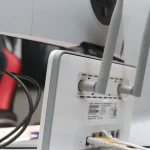
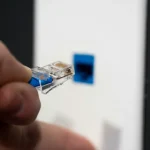
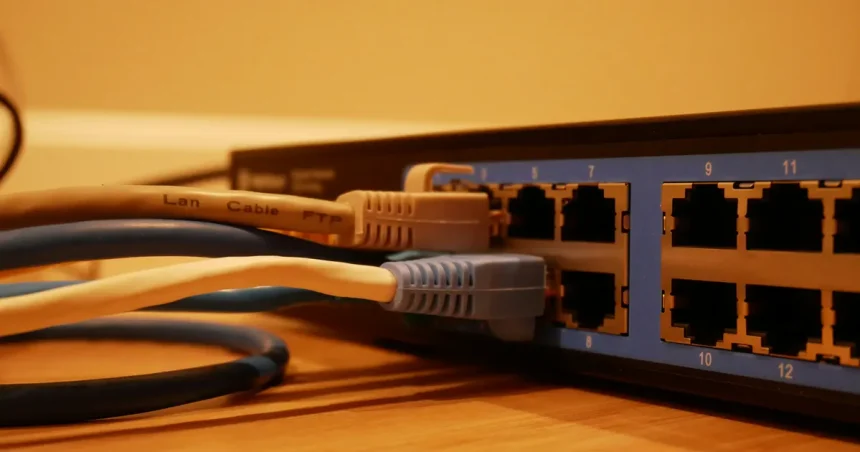
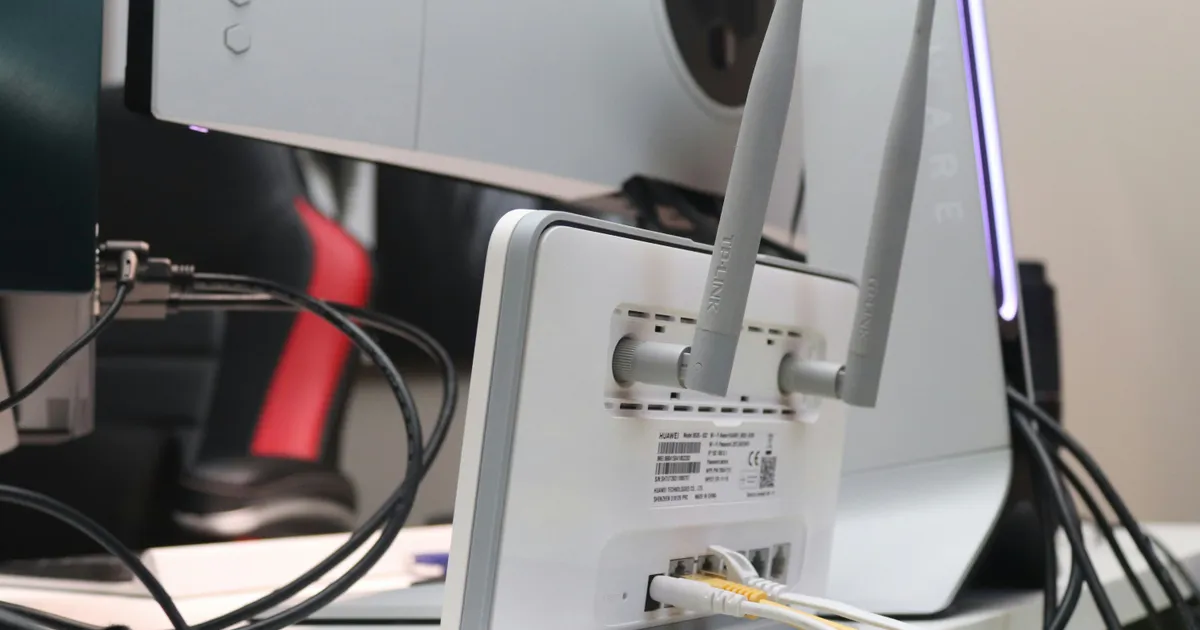
With your modem successfully connected and showing an active internet signal, it’s time to set up your Wi-Fi router, which broadcasts your wireless network. Connect one end of the Ethernet cable (usually provided by your ISP) to the “Ethernet” or “LAN” port on your modem. Then, connect the other end of the Ethernet cable to the “WAN” or “Internet” port on your Wi-Fi router. This port is often a different color (like blue) or clearly labeled to distinguish it from the regular LAN ports. Once the physical connection is made, plug the router’s power adapter into an electrical outlet and into the router’s power port. Allow the router a few minutes to boot up and initialize its internal systems.
Choosing the Right Router
Selecting the appropriate router is crucial for a robust home network. For many beginners, the router provided by your ISP is sufficient, often being a combined modem-router unit. However, if you have a separate modem, investing in a dedicated router can offer enhanced performance, security features, and greater control. Look for routers supporting Wi-Fi 6 (802.11ax) for future-proofing your network in 2026, offering faster speeds and better efficiency for multiple devices. Consider your home’s size and the number of devices you’ll connect; larger homes or those with many smart devices might benefit from a mesh Wi-Fi system for seamless coverage.
After the router powers on, you’ll typically see lights indicating power, internet connectivity, and Wi-Fi activity. Use a computer or smartphone to search for available Wi-Fi networks. You should see a network name (SSID) listed on a sticker on your router or in the ISP’s documentation. Connect to this network using the default password, also found on the sticker. Once connected, open a web browser; you may be redirected to your ISP’s activation page or your router’s setup wizard. Follow the on-screen prompts to customize your network name (SSID) and, crucially, change the default password to a strong, unique one. This secures your network from unauthorized access and is a vital step in your home broadband setup.
Testing Your Connection and Troubleshooting
Once your modem and router are set up, the next critical step is to verify your internet connection. Open a web browser on a connected device (either wired to the router or wirelessly) and try to visit a few reputable websites, such as Google or your favorite news site. If pages load quickly and correctly, congratulations, your home broadband setup is largely complete! To check your internet speed, visit a reliable speed test website like Speedtest.net. Compare the results to the speeds promised by your ISP to ensure you’re getting what you pay for.
If you encounter issues, don’t panic; troubleshooting is a common part of the process. First, perform a simple power cycle: unplug both your modem and router, wait 30 seconds, then plug the modem back in. Once the modem’s internet light is solid, plug in the router. This often resolves minor connectivity glitches. Check all cables to ensure they are securely plugged in, both at the devices and at the wall outlets. If issues persist, consult your ISP’s support documentation or contact their customer service. Sometimes, a simple account activation or a signal refresh from their end is all that’s needed to get you online.
Optimizing Your Home Network for 2026
A basic home broadband setup gets you online, but optimizing your network ensures the best possible performance and security. Router placement significantly impacts Wi-Fi signal strength; placing it in a central, elevated location, free from obstructions, can dramatically improve coverage. Regularly update your router’s firmware, as these updates often include performance enhancements and crucial security patches. Many modern routers offer a companion app for easy management and updates. Consider upgrading to a Wi-Fi 6 (802.11ax) router if you have many devices or demand high speeds, as it offers improved efficiency and capacity over older standards.
For larger homes or areas with poor Wi-Fi coverage, consider investing in a mesh Wi-Fi system or Wi-Fi extenders. Mesh systems create a single, seamless network throughout your home, eliminating dead zones, which is increasingly important with the growing number of smart home devices in 2026. Prioritize security by using a strong, unique Wi-Fi password (WPA2 or WPA3 encryption is recommended) and enabling a guest network for visitors, keeping your main network secure. Regularly review connected devices in your router’s settings to identify any unauthorized users. Implementing these optimizations will provide a faster, more reliable, and secure internet experience for everyone in your household.
Key Takeaways
- Understand your broadband service type (Fiber, Cable, DSL, 5G Home Internet) and check ISP kit contents.
- Connect your modem first, ensuring all cables are secure and indicator lights stabilize.
- Connect your Wi-Fi router to the modem’s WAN port with an Ethernet cable.
- Customize your Wi-Fi network name (SSID) and set a strong, unique password for security.
- Test your internet connection with a web browser and a speed test website.
- Optimize your network by choosing good router placement, updating firmware, and considering mesh Wi-Fi.
Frequently Asked Questions
What is the difference between a modem and a router?
A modem connects your home network to your Internet Service Provider (ISP) and translates the internet signal. A router then takes that internet connection from the modem and distributes it to all your devices, either wirelessly (Wi-Fi) or via Ethernet cables, creating your local home network.
Can I use my own modem and router instead of the ISP’s equipment?
In many cases, yes, you can. Using your own equipment can save you monthly rental fees and potentially offer better performance or features. However, you must ensure your chosen modem is compatible with your ISP’s service type and specifications. Always check with your ISP before purchasing.
My internet light on the modem isn’t solid. What should I do?
First, ensure all cables (coaxial, phone line, or fiber optic) are securely connected to both the modem and the wall outlet. Try power cycling the modem by unplugging it for 30 seconds and plugging it back in. If the light remains unstable, contact your ISP as there might be an issue with the service signal to your home.
How do I improve my Wi-Fi signal strength?
To improve Wi-Fi signal strength, place your router in a central, elevated location away from obstructions and other electronics. Consider using a Wi-Fi analyzer app to identify optimal channels, and if you have a large home, a mesh Wi-Fi system or range extender can significantly boost coverage.
Is it important to change the default Wi-Fi password?
Absolutely, changing the default Wi-Fi password is crucial for security. Default passwords are often generic or easily guessable, making your network vulnerable to unauthorized access. A strong, unique password using a mix of uppercase and lowercase letters, numbers, and symbols protects your personal data and bandwidth.
Conclusion
Successfully completing your home broadband setup is a significant step towards a fully connected lifestyle. By following this complete beginner guide, you’ve gained the knowledge and confidence to install your modem, configure your Wi-Fi router, and establish a reliable internet connection. Remember the importance of securing your network with strong passwords and optimizing your setup for the best performance. As technology evolves rapidly, especially looking ahead to 2026, a well-configured home network remains essential for work, entertainment, and staying connected with the world. Enjoy your new, seamless online experience!