
Experiencing an unstable broadband signal can be incredibly frustrating, disrupting everything from online work to streaming entertainment. Fortunately, many common internet connection problems can be resolved with easy troubleshooting methods for unstable broadband signals, often without needing to call technical support. This comprehensive guide will walk you through practical, step-by-step solutions designed to help you diagnose and fix your connectivity issues, ensuring a smoother and more reliable online experience in 2026 and beyond. We’ll cover everything from basic reboots to optimizing your Wi-Fi environment and understanding when it’s time to escalate the issue to your internet service provider.
Diagnosing the Root Cause of Broadband Instability
Before diving into specific fixes, it’s crucial to accurately diagnose what an unstable broadband signal means for your setup. Is your internet connection dropping intermittently, or is it consistently slow and unreliable? Understanding the symptoms is the first step in effective troubleshooting. Start by observing if the issue affects all devices on your network, or just one. If only a single device experiences problems, the issue might lie with that device rather than your broadband connection itself. Conversely, if multiple devices, both wired and wireless, are struggling, it strongly indicates a broader network or ISP-related problem that needs attention.
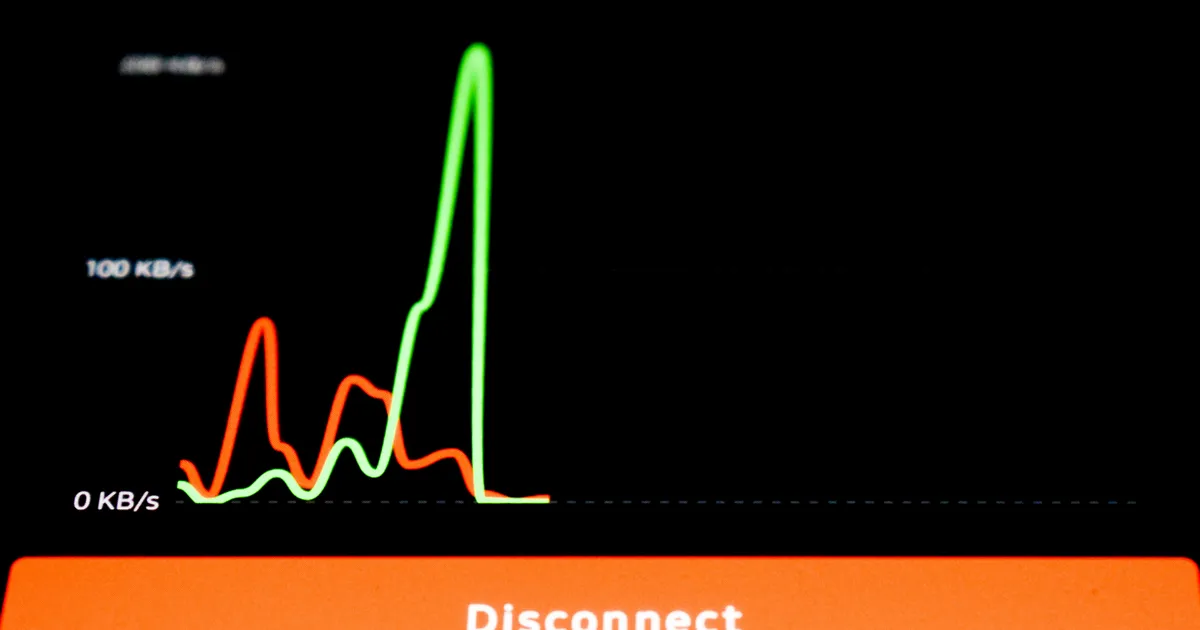
A fundamental diagnostic tool is an internet speed test. Websites like Speedtest.net or Fast.com can provide real-time data on your download and upload speeds, as well as latency (ping). Run these tests multiple times throughout the day, especially when you notice performance dips. Compare these results against the speeds promised by your internet service provider (ISP). Significant discrepancies, coupled with frequent disconnections, are clear indicators of an unstable broadband signal. Keeping a log of when these issues occur and the speed test results can be invaluable information when communicating with your ISP, providing a clear historical record of the instability you’re experiencing.
The Power of a Simple Reboot
One of the most effective and easy troubleshooting methods for unstable broadband signals is often the simplest: rebooting your modem and router. Over time, these devices can accumulate minor software glitches or memory issues that impair their performance. A power cycle clears their temporary memory, allowing them to re-establish a fresh connection with your ISP and reset internal processes. Think of it as giving your network equipment a fresh start, which can resolve a surprising number of connectivity woes, from slow speeds to complete signal drops, by flushing out any accumulated errors or IP conflicts.
To perform a proper power cycle, first, unplug the power cord from your router, then unplug the power cord from your modem. Wait for at least 30 seconds to a full minute. This waiting period is crucial as it ensures all residual power is drained from the devices. After the waiting period, plug your modem back in first and wait for all its indicator lights to stabilize, typically taking a minute or two. Once the modem is fully online, plug your router back in and wait for its lights to stabilize as well. This sequence ensures that your modem establishes a connection with your ISP before your router attempts to distribute that connection to your devices, preventing potential conflicts.
Optimizing Your Wi-Fi Environment
Your Wi-Fi signal is highly susceptible to interference and physical obstructions, which can lead to an unstable broadband signal even if your internet connection itself is robust. Common household items like microwaves, cordless phones, baby monitors, and even neighboring Wi-Fi networks operating on the same channel can degrade your signal quality. Walls, floors, and large metal objects also act as barriers, significantly weakening the signal as it travels through your home. Identifying these sources of interference and strategically positioning your router can dramatically improve your wireless performance and stability.
Effective router placement is paramount for optimal Wi-Fi coverage. Position your router in a central location within your home, away from walls, large appliances, and other electronics. Elevating the router off the floor, perhaps on a shelf or desk, can also help its signal propagate more effectively. Additionally, many modern routers support dual-band frequencies (2.4 GHz and 5 GHz). The 2.4 GHz band offers wider coverage but is more prone to interference, while the 5 GHz band provides faster speeds over shorter distances with less interference. Experimenting with different Wi-Fi channels or enabling your router’s auto-channel selection feature can also help avoid congestion from nearby networks, particularly in dense urban environments.
Reducing Device Congestion
A common cause for perceived broadband instability, especially on Wi-Fi, is simply having too many devices simultaneously vying for bandwidth. Every device connected to your network, from smartphones and smart TVs to gaming consoles and smart home gadgets, consumes a portion of your available internet speed. If you have multiple users streaming 4K video, downloading large files, and engaging in online gaming all at once, even a fast internet connection can feel sluggish and unstable. This congestion can lead to buffering, lag, and intermittent disconnects, making it seem like your broadband signal is failing when it’s merely overwhelmed.
To alleviate device congestion, consider implementing Quality of Service (QoS) settings on your router, if available. QoS allows you to prioritize certain types of traffic (e.g., video streaming or online gaming) or specific devices, ensuring critical applications receive the bandwidth they need. Disconnecting devices that are not actively in use can also free up valuable bandwidth. Furthermore, for high-bandwidth activities, using an Ethernet cable for a wired connection bypasses Wi-Fi congestion entirely, offering a more stable and faster experience. Regularly auditing connected devices and managing their usage can significantly enhance your network’s overall stability in 2026.
Checking Physical Connections and Hardware
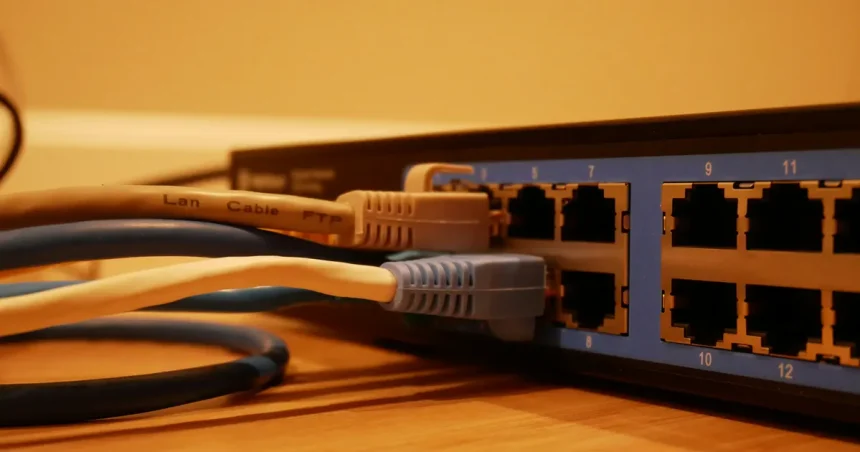
Loose or damaged physical connections are often overlooked but can be a primary culprit behind an unstable broadband signal. Begin by inspecting all cables connected to your modem and router. Ensure the coaxial cable (for cable internet), Ethernet cables, and power cords are securely plugged into their respective ports. A common mistake is not fully seating a cable, leading to intermittent signal loss or reduced performance. Pay close attention to any bends, kinks, or frayed areas on the cables, as physical damage can severely impair signal integrity and cause ongoing connectivity problems that are difficult to pinpoint.
Beyond the cables, the health of your modem and router hardware itself is critical. Check for any unusual indicator lights on your modem or router. Flashing lights that typically remain solid, or lights that are off when they should be on, often signal a problem. For example, a “DS” or “US” light on a cable modem that is blinking frequently may indicate an issue with the downstream or upstream signal from your ISP. If your equipment is old, consider that aging hardware can become less efficient and reliable, struggling to maintain a stable connection, especially with increasing network demands. Sometimes, simply replacing an old modem or router, perhaps obtained from your ISP, can resolve persistent instability.
Updating Firmware and Software
Keeping your router’s firmware up to date is a critical, yet often neglected, aspect of maintaining a stable and secure network. Firmware is the embedded software that controls your router’s operations. Manufacturers regularly release updates to fix bugs, improve performance, add new features, and patch security vulnerabilities. Outdated firmware can lead to an unstable broadband signal, poor Wi-Fi range, slower speeds, and even make your network susceptible to cyber threats. It’s a fundamental step in ensuring your router operates at peak efficiency and reliability.
To update your router’s firmware, you typically need to access its web-based administrative interface by typing its IP address (often 192.168.1.1 or 192.168.0.1) into a web browser. Consult your router’s manual or the manufacturer’s website for specific instructions, as the process varies by model. While inside the interface, also check for settings related to DNS servers. Sometimes, switching to public DNS servers like Google DNS (8.8.8.8 and 8.8.4.4) or Cloudflare DNS (1.1.1.1 and 1.0.0.1) can improve browsing speed and resolve certain connectivity issues. Furthermore, ensure that the network drivers on your computers and other devices are also updated, as outdated drivers can sometimes cause device-specific connectivity problems, even when the broadband signal itself is stable.
When to Contact Your Internet Service Provider (ISP)
Despite your best efforts with easy troubleshooting methods for unstable broadband signals, there are times when the problem extends beyond your home network. If you’ve systematically tried all the aforementioned steps—rebooting equipment, optimizing Wi-Fi, checking connections, and updating firmware—and your broadband signal remains unstable, it’s highly probable the issue lies with your Internet Service Provider. This could be due to external factors such as network outages in your area, problems with the lines leading to your home, or issues at their central office. Recognizing when to involve your ISP saves you from further fruitless troubleshooting.
When you contact your ISP, be prepared to provide them with clear and concise details of the problems you’re experiencing. Explain the troubleshooting steps you’ve already taken, mention any speed test results you’ve logged, and specify if the issue is intermittent or constant. This information helps their technical support narrow down the potential causes more quickly. They can often run diagnostics on your line remotely and may even detect problems with their infrastructure or suggest a technician visit. In some cases, your ISP might determine that your modem or router is faulty and offer a replacement, ensuring your internet service is restored to optimal performance for 2026.
Key Takeaways
- Start troubleshooting with simple reboots of your modem and router.
- Optimize Wi-Fi by checking for interference, adjusting router placement, and managing device congestion.
- Thoroughly inspect all physical cables and connections for damage or looseness.
- Regularly update your router’s firmware for improved performance and security.
- Use speed tests and consistent observations to accurately diagnose issues.
- Contact your ISP with detailed information if home-based troubleshooting doesn’t resolve the unstable broadband signal.
Frequently Asked Questions
Why is my broadband signal unstable intermittently?
Intermittent broadband instability is often caused by Wi-Fi interference from other devices or neighboring networks, an overloaded router struggling with too many connected devices, or minor glitches that a simple modem/router reboot can resolve. It could also point to a fluctuating signal from your ISP, especially if it happens at specific times of day.
How often should I reboot my router?
While there’s no strict rule, rebooting your router every one to two months is a good practice to clear out temporary bugs and maintain optimal performance. If you frequently experience an unstable broadband signal, a reboot can be a quick first step, but continuous issues warrant deeper investigation.
Can old hardware cause an unstable internet connection?
Yes, absolutely. Aging modems and routers can become less efficient over time, struggling to keep up with modern bandwidth demands and security protocols. Old hardware can lead to slower speeds, frequent disconnections, and general broadband instability, making an upgrade a worthwhile investment for a stable connection in 2026.
What’s the difference between 2.4 GHz and 5 GHz Wi-Fi?
The 2.4 GHz band offers a wider coverage area and penetrates walls better but is slower and more susceptible to interference from other household devices. The 5 GHz band provides faster speeds and less interference but has a shorter range and is more easily blocked by obstacles. Using both effectively can optimize your home network.
When should I suspect my ISP is the problem?
You should suspect your ISP if you’ve tried all common troubleshooting steps—rebooting, checking cables, optimizing Wi-Fi, updating firmware—and the unstable broadband signal persists across multiple devices, both wired and wireless. Consistent low speeds compared to your plan, or widespread outages reported in your area, also point to an ISP-side issue.
Conclusion
An unstable broadband signal doesn’t have to be a persistent nuisance. By systematically applying these easy troubleshooting methods, you can often restore stability and speed to your internet connection without requiring professional assistance. From the foundational step of a simple modem and router reboot to optimizing your Wi-Fi environment and ensuring your hardware and software are up to date, these actions empower you to take control of your network’s health. Remember, a proactive approach to maintaining your home network, including regular checks and updates, is key to enjoying a consistently reliable and fast internet experience. If all else fails, a detailed report to your ISP, armed with your troubleshooting efforts, will pave the way for a swift resolution.